
Intro to reverse proxies
To make your web service accessible to the public, it’s common to place it behind a “reverse proxy.” This serves to centralize security, distribute public access across multiple servers, or balance the load between identical servers (to handle more traffic or ensure high availability). The reverse proxy can also enhance performance by caching static data (images, logos, fonts, JS, CSS).
In this article, we’ll introduce a set of tools to set up a reverse proxy that handles HTTPS.
Setting up HAProxy
I use several reverse proxies: HAProxy, Nginx, Traefik, among others. Today, it’s HAProxy!
A web server is reachable on ports 80 (HTTP) and 443 (HTTPS). The domain name my-app.com points to my reverse proxy, which then forwards HTTP traffic to two web servers capable of handling visitors.
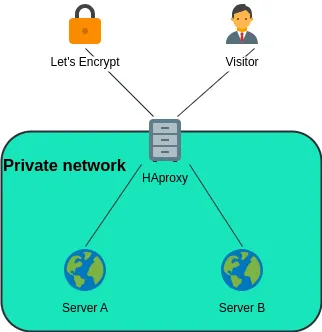
On the server acting as the reverse proxy, I install HAProxy with sudo apt install haproxy. If I have a firewall, I make sure to open ports 80 and 443.
There we go. We have a functional but unconfigured reverse proxy. We’ll configure it quickly, but first, a quick note on HTTPS.
Managing SSL certificates from a Reverse Proxy
Managing SSL certificates (which enable HTTPS to encrypt communications) should be handled by HAProxy. This is because the web servers capable of responding to an ACME challenge are located elsewhere in a private network, and in a load-balancing environment, it’s crucial to maintain a consistent configuration across different servers. Giving one of the backends more power for SSL certificate renewal would disrupt this consistency. Additionally, since we redirect every other request to each server, generating SSL certificates necessary for HTTPS could be problematic. I can’t predict if the ACME validation bots will visit the correct server.
So, let’s combine the useful with the enjoyable. Pretty cool, right?
To start and organize a bit, I create a directory structure in the /etc/haproxy folder: mkdir -p /etc/haproxy/ssl. This is where I’ll store my certificates. Then I configure HAProxy by editing the file /etc/haproxy/haproxy.cfg and adding the following:
# Listening on port 80 (HTTP)
frontend http
    bind *:80
    mode http
    option httplog

    # Automatic Redirection to HTTPS if the URL is not used for the ACME challenge
    http-request redirect scheme https code 301 if !{ path_beg /.well-known/acme-challenge/ }
    # If the called URL is for validating a certificate, then I forward it to a specific backend
    use_backend backend-certbot if { path_beg /.well-known/acme-challenge/ }

# Listening on port 443 (HTTPS)
frontend https-tcp
    bind *:443 ssl crt /etc/haproxy/ssl/ crt-ignore-err all
    mode http
    option httplog

    # If the called URL is for validating a certificate, then I forward it to my specific backend
    use_backend backend-certbot if { path_beg /.well-known/acme-challenge/ }
    # Otherwise, if I detect that it's the domain name mon-app.fr, I redirect to the "my-app" backend
    use_backend my-app if { hdr(host) -i my-app.com }

# Backend dedicated to certificate renewal
backend backend-certbot
    mode http
    server certbot 127.0.0.1:2031

#Bakend of my app
backend my-app
    mode http
    balance roundrobin
    server Serveur_A 192.168.10.1:80
    server Serveur_B 192.168.10.2:80
Note:
- Remember to change the domain names to yours.
- Don’t forget to rename the backends. Your site or API is probably not “mon-app” 😊.
- Change the backend IPs to yours.
- If you only have one backend, remove the
balance roundrobinline and leave just one server definition line (like inbackend-certbot). - You can add multiple domain name detection rules in the HTTPS frontend; you’ll need to create as many backends (unless multiple domain names point to the same web service).
If you’re new to HAProxy, you might think it’s magic. But if you’re familiar with it, you’ll notice the only trick is identifying requests meant for Certbot (the tool that will manage certificates) and forwarding them to port 2031 on the reverse proxy server. This port doesn’t need to be open on your firewall; it’s for allowing two services (HAProxy and Certbot) to communicate on the same server.
Now, let’s move on to certificate management.
Request a certificate for my domain
To stay organized, I add a new folder in /etc/haproxy. This will store my scripts for controlling Certbot. I’ll get back to that in a moment.
mkdir -p /etc/haproxy/scripts
🧌 etc stands for “Editable Text Configuration.” Putting scripts in the middle of the config! gngngn (troll raging)
🤓 Yes, yes, I know! What I’m about to do isn’t the prettiest, but you can move it wherever you like. Even though I’m the first to advocate for respecting folder responsibilities on my servers (teamwork requires common standards), I must point out that there’s no specific norm or RFC defining the contents of the “/etc” folder on a Linux filesystem. Yes, I know: bad faith 😜
Now, let’s set up a script to request certificates from Let’s Encrypt. Place it wherever you like; I’ll put it in /etc/haproxy/scripts/request-certificate.sh. The following script will do several things:
- Check that it receives an argument (the domain name for which we want a certificate)
- Check that Certbot, the tool for requesting certificates, is installed
- Request a certificate for our domain
- Specify that it’s standalone
- Prove that we are admins of this domain via an HTTP ACME challenge on port 2031 (you can change this, but be careful, as I use it in the HAProxy configuration later in this article)
- Accept Let’s Encrypt’s terms of service
- Indicate that this is a script-initiated action, so everything should be automatic without requiring responses
- Prepare the certificate chain that HAProxy can read (a file with the public and private certificates) and save it in /etc/haproxy/ssl
Make sure to modify the script to include your email address instead of your@mail.here
#!/bin/bash

# Check that the DOMAIN argument is provided
if [ -z "$1" ]; then
    echo "Usage: $0 <domaine>"
    echo "Exemple: $0 exemple.com"
    exit 1
fi

EMAIL=your@mail.here
DOMAIN=$1

if ! command -v certbot &> /dev/null
then
    echo "certbot not found PATH. Is certbot installed ? Please refer to https://certbot.eff.org/instructions "
    exit 1
fi

certbot certonly \
	--standalone \
	--preferred-challenges http \
	--http-01-address 127.0.0.1 \
	--http-01-port 2031 -d $DOMAIN \
	--email $EMAIL \
	--agree-tos \
	--non-interactive

cat /etc/letsencrypt/live/$DOMAIN/fullchain.pem /etc/letsencrypt/live/$DOMAIN/privkey.pem > /etc/haproxy/ssl/$DOMAIN.pem
Then make this script executable with the command chmod +x /etc/haproxy/scripts/request-certificate.sh. This allows you to run the script.
What does this script do? It checks that you launch it with a specified domain name, then requests a certificate from Let’s Encrypt for that domain name. To verify that you are legitimate, Let’s Encrypt will give you a very long random word to quickly place in a specific location on your site. The script opens port 2031 (used as a backend in HAProxy, remember) and places this challenge file there. When Let’s Encrypt sends a bot to check that the file is there, HAProxy will forward the request to Certbot, which has the file. This way, you don’t actually need a web server to request a certificate.
Next, install Certbot with sudo apt install certbot.
There you go! You can restart HAProxy with systemctl restart haproxy and then run the script to get your first certificate. For mon-app.fr, the command will be /etc/haproxy/scripts/request-certificate.sh my-app.com.
Automatic certificate renewal
If you didn’t know, Let’s Encrypt provides a free SSL certificate signed by a Certificate Authority (CA) recognized by browsers. However, these certificates are only valid for three months, so they need to be renewed before expiration. For that, I created other scripts to place next to the first one in /etc/haproxy/scripts/renew-certificate.sh
#!/bin/bash
certbot renew \
	--standalone \
        --force-renewal \
	--preferred-challenges http \
	--http-01-address 127.0.0.1 \
	--http-01-port 2031 \
	--post-hook "/etc/haproxy/scripts/concatenates.sh && systemctl reload haproxy.service" \
	--quiet
and /etc/haproxy/scripts/concatenates.sh
#!/bin/bash
for DOMAIN in `find /etc/letsencrypt/live/* -type d`; do
  DOMAIN=`basename $DOMAIN`
  cat /etc/letsencrypt/live/$DOMAIN/fullchain.pem /etc/letsencrypt/live/$DOMAIN/privkey.pem > /etc/haproxy/ssl/$DOMAIN.pem
done
Here, it’s very similar to the previous script; it does the same thing, but this time we specify that we want a renewal. By the way, if you used the previous script for 1, 2, 10, or 100 different domain names, the renewal will be done for each of them.
Next, make this script executable: chmod +x /etc/haproxy/scripts/renew-certificate.sh /etc/haproxy/scripts/concatenates.sh
Then, schedule the automatic running of this script regularly. For that, we’ll create a scheduled task, and on Linux, that’s called a CRON job.
Check that cron is installed: sudo apt install cron then enter the cron editor with sudo crontab -e
Add the following line:
0 12 1 * * /etc/haproxy/scripts/renew-certificate.shThis will schedule a renewal on the first of every month at 12:00 PM. You can change the frequency as you like. Save and exit.
Revoke a certificate
That’s really great, but there’s still a small issue… If I stop using a domain name or want it to point to another server, then my renewal will no longer work for that domain. I’ll get failures with each attempt. To address this, you need to be able to tell Certbot that you no longer want to renew a certificate. So, I have one last script for you that does this job.
Copy the following into /etc/haproxy/scripts/revoke-certificate.sh
#!/bin/bash

# Check that the DOMAIN argument is provided
if [ -z "$1" ]; then
    echo "Usage: $0 <domaine>"
    echo "Exemple: $0 exemple.com"
    exit 1
fi

DOMAIN=$1

# Confirmation before certificate deletion
echo "Deleting certificate for domain : $DOMAIN"
read -p "Are you sure you want to delete this certificate? [y/N]: " confirmation

if [[ "$confirmation" =~ ^[Yy]$ ]]; then
    certbot delete --cert-name $DOMAIN
    echo "Certificate deleted for $DOMAIN."
else
    echo "Operation canceled."
fi
Once again, make this script executable with chmod +x /etc/haproxy/scripts/revoke-certificate.sh
To revoke a domain name already configured in Certbot, run /etc/haproxy/scripts/revoke-certificate.sh my-app.com