


I was recently asked to bring back an enterprise server managed and hosted by an IT service provider. This might not be an isolated case, and ask some questions as :
- How can I be sure to retrieve all configurations for each service?
- Is the current server a VM? Can it be exported? Will it be compatible with my hypervisor if I want to virtualize it?
- Will the current IT service provider help me migrate this server?
- How can I minimize service downtime for my users?
- Is it smarter to do a fresh install? Let’s hope to find the same versions of the runtimes…
It might be cleaner to start from scratch. However, if your service is billed, the cost of a new installation might be higher than a simple migration. There are probably other reasons why you want to clone your server instead of completely reinstalling it.
Below is a method to clone a server that is simple, effective, imperfect, but still has its advantages.
Goals of server cloning
Before going on, I’d like to outline what will be done next. I’ll explain how to create an exact replica of a server (whether it’s an instance, VPS, dedicated server, VM…) using the tool rsync. rsync is an open-source and free tool designed for file transfer and synchronization. My goal is to retrieve the system, services, and data from this server and reuse them in a VM that will maintain the same CPU/RAM resources.
After this process, I’ll be able to redirect the DNS pointing to my service, possibly adjust firewalls to allow the new IP of my server, and that’s it.
For my example, we’re dealing with a web server running a PHP site and a database, all on Debian 12.8. I have a server with 8 cores, 16 GB of RAM, and 50 GB of storage.
Requirements
To prepare for cloning, you need to do a bit of setup:
- Have root or sudo access to the server to be cloned (Server A)
- Set up a destination server (Server B), with the network configured and accessible from Server A by SSH
- A and B should use the same distributions and versions (e.g., Debian 12.8)
- A and B should have identical file systems (ext4, xfs, zfs, btrfs…). It will be difficult to clone a server with software RAID to one without it, and vice versa.
- Install
rsyncon both A and B to enable mirroring from A to B. On Debian/Ubuntu:apt install rsync
Preparing to clone you server
On a Linux system, there are directories that should not be copied. I’m thinking of /dev, which manages devices and machine components, for example. There are also /sys and /proc in the same vein, and then there are directories or files where you want to keep server B functioning properly, like /etc/fstab for mounting disks that might be different on B, /etc/mdadm.conf if I have RAID, or the network configuration /etc/network, for example.
There are also directories that I don’t want to copy for other reasons, such as /home/old-it-provider or /tmp.
I take the time to list what I don’t want to copy. Here is a ready-to-copy/paste list for the average user:
/boot
/dev
/sys
/proc
/etc/fstab
/etc/mtab
/etc/mdadm.conf
/etc/network
And here is the continuation of the list, with things that I do not want to copy. Now it’s your turn to make your list and add it to the first one:
/tmp
/backup
/home/old-it-provider
I create a single file that I will place in /tmp/clonage-exclusion, which will contain my two lists, one after the other.
Let’s clone my server with rsync
Everything is ready! Now it’s time to clone.
WARNING !
If I have data that changes on the server (database, cache...), this is the right time to stop my services properly. Otherwise, the copy might be incomplete or corrupted.
Did I properly run systemctl stop mysql? Then let’s go 🔥🔥🔥
I start the copy from A to B (from Server A), ideally in a terminal multiplexer to avoid issues if I’m using SSH. I use tmux in my case, which you can install with apt install tmux and launch with the command tmux. This allows you to lose access to your terminal and regain it with the command tmux a (pro tip 😉).
sudo rsync -vPa -e 'ssh -o StrictHostKeyChecking=no' --exclude-from=/tmp/clonage-exclusion / root@IP.adress.server.B:/What does this command do exactly?
sudo: to have access to all files and directories. (Optional if I am already the root user.)-v: enable verbose mode. This option will display on the screen what is happening in real-time. (Optional)-P: equivalent to --partial --progress. I use this option because my copy can be long and may be interrupted.-a: this is equivalent to -rlptgoD and indicates that I want to clone everything.-e: allows me to use another software for file transfer (here SSH).
-o StrictHostKeyChecking=no: do not verify the destination (optional, reduces the number of interactions when launching the command).
I could also have added:
-p 2222: to specify a custom SSH port (here 2222).
-i /root/.ssh/id_rsa: to provide the SSH key that allows connecting to the target server B.--exclude-from=/tmp/clonage-exclusion: The list of things I do not want to clone./: the base storage of Server A to indicate that I want to copy everything. I could also have copied only /home and its child directories, for example.root@adresse.IP.serveur.B:/: how to reach Server B (user@IP address:target directory. Here we copy from / to / (the root of each server).
Don’t forget to change adresse.IP.serveur.B to the IP address to contact B (like 192.168.1.23, for example).
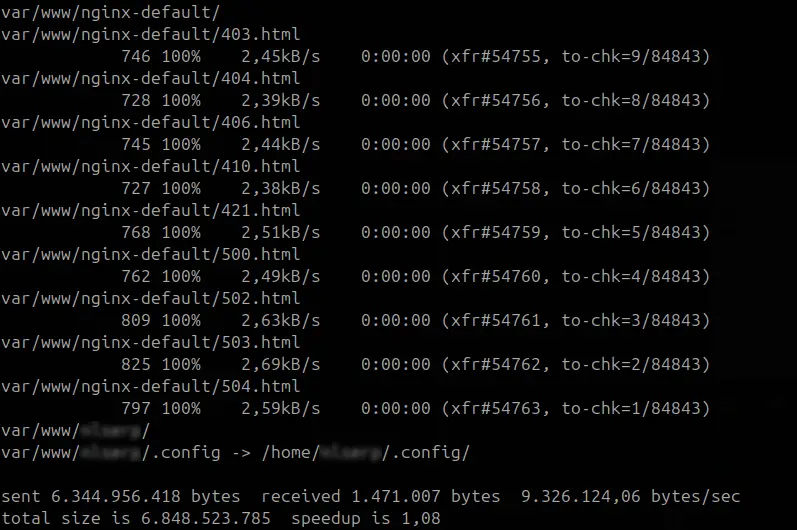
Result:
Check for proper operation
On Server B, everything should be there. So, we’ll reboot Server B and check that everything is okay, that it reboots, and that my services are started.
For example, for PHP 8.2: service php8.2-fpm status
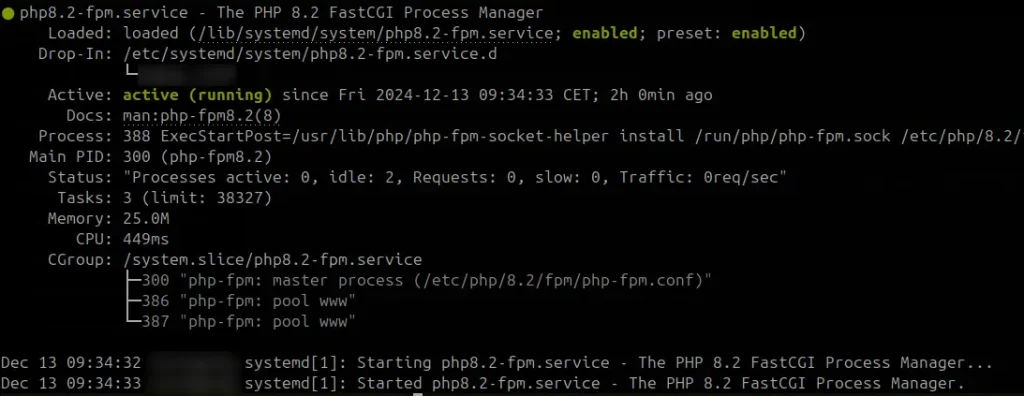
Everything looks good! Just a reminder that on server B, I never installed PHP at all; the rsync copy took care of replicating the installed software. Note that the credentials/passwords I configured on server B have been replaced by those from server A (including authorized SSH keys).
💡Tip: I also test that the ports are correctly open and available from the servers that need to contact mine using the alive command. This saves me a ton of time because a responding port means a correctly started service and a well-configured firewall!
It’s now time, if I wish, to redirect the DNS to Server B and decommission Server A !
Pros and cons of the method
This cloning method requires taking some precautions beforehand:
- Ensure that firewall rules remain consistent, as the server’s IP addresses (public/private) will change.
- Verify that the new IP is authorized on other servers to be joined (API, backup server, NFS…).
- Make sure server monitoring will follow.
- Ensure you have root or sudo access on Server A, as it will be necessary on Server B.
There are also steps to take after cloning:
- Remove access from the old IT service provider who currently still has access to my Server B.
- Remove software that the previous IT service provider may have installed for their services (their monitoring, backup service, scripts, and tools, which might be proprietary; contacting them is a good idea).
But I also have positive feedback from this experience:
- I cloned an unknown type of server (probably a VPS) onto a VM, but I could have done it on an LXC container as well.
- I cloned this server with a complex partitioning (
/home,/boot,/varin different partitions) onto a single disk, which suits the need. - I could have done the exact opposite of what is mentioned in the previous point!
- I took the opportunity to reduce the disk size (8GB was used out of 50GB, so I cloned to a 15GB disk).
- The total cloning/migration time was less than 1 hour.
- This method could also be used for a stateless service (e.g., an API or a showcase site without a database) to have a staging copy or for load balancing purposes.
This is a successful and functional experience worth knowing. Enjoy!